Best Outlook Add-Ins 2026: OpenSlot, Boomerang, Unroll.Me + 2
We tested dozens of extensions from the Microsoft Marketplace and narrowed it to five picks that genuinely save time in 2026, every one of them free to start.
- Folder Suggest — AI-powered email filing that suggests the right folder for any message, with no rules to set up. Top pick overall.
- OpenSlot — Paste-ready lists of when everyone is free. Strongest option for proposing times without a booking link.
- Boomerang — Schedule send and follow-up reminders. Ideal for managing replies across time zones.
- Unroll.Me — Bulk subscription management. Ideal for taming newsletter clutter.
- Microsoft To Do — Turn emails into tasks. Strongest option for task capture inside Outlook.
Microsoft Marketplace lists thousands of Outlook extensions. Most are too niche to matter, too complex to bother with, or too expensive for what they offer. The five below address the pain points that come up most often: email filing, sending your availability, scheduling, subscription noise, and task capture. Every pick works in New Outlook and Outlook on the web, and most also work in Outlook classic desktop.
Add-in #1
Folder Suggest — AI-Powered Email Filing
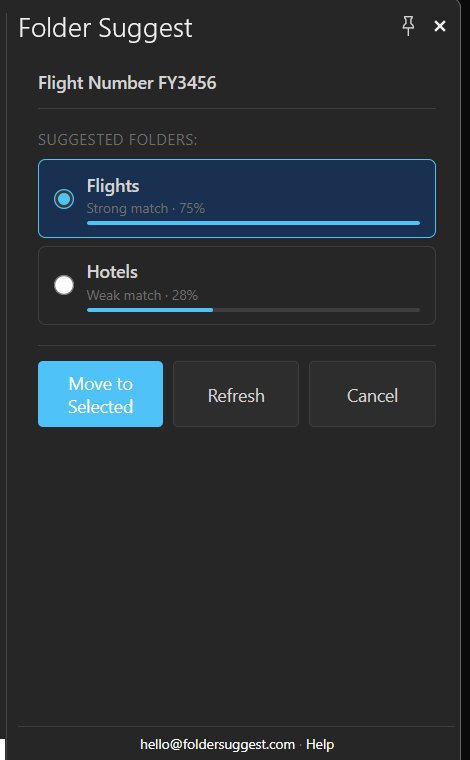
If you organise your Outlook folders to manage email, Folder Suggest is the most impactful pick on this list. It runs an on-device AI model that analyses the email you're reading (sender, subject, body) and ranks your existing folders by how closely they match. The top suggestion is pre-selected; one click moves the message. It's the simplest of the ways to automatically file emails in Outlook, and the only one that needs no rules at all.
Unlike Outlook Rules, Folder Suggest requires zero configuration. There are no conditions to write and no rules to maintain. It handles ambiguous messages that rules can't. An email from your accountant about a specific project gets the right folder even if no rule exists for it.
All processing happens locally on your device. Nothing is sent to any server. The model (~20 MB) downloads once from Hugging Face and runs entirely in the extension.
- Who it's for: Anyone with a complex folder structure who spends real time filing email.
- Standout feature: Context-aware suggestions without any setup or maintenance.
- Privacy: Fully on-device. No email content ever leaves your machine.
- Pricing: The free plan files 5 emails a day, forever, with every AI feature included. Pro removes the daily limit at €7.99/month or €79/year, after a 7-day free trial.
Add-in #2
OpenSlot — Paste-Ready Availability Lists
OpenSlot answers the question that starts most meeting threads: when is everyone free? It reads Microsoft 365 free/busy for you and the colleagues you pick, then drops a clean list of every slot where you're all available into the email you're already writing, grouped by day and in whichever timezone you choose.
There's no booking page and no voting round. The recipient gets times as plain text they can answer in one word, which is what you want when you're writing to a candidate, a client, or anyone who won't click a scheduling link. It reads calendar free/busy only, so it never sees meeting titles or attendees, and it stores no calendar data. OpenSlot launched in September 2026, which makes it the newest pick on this list.
- Who it's for: Executive assistants, recruiters, and anyone who proposes times on behalf of a group.
- Standout feature: Merges up to 40 calendars into one paste-ready list, up to 60 days out.
- Privacy: Read-only free/busy. No meeting titles, and availability is computed per request rather than stored.
- Pricing: Free for you plus one other person over a 7-day window, with a one-line "made with OpenSlot" credit on the lists it produces. Pro is $7/user/month, or $72 a year, for up to 40 people and a 60-day window. Every account starts with a 14-day Pro trial.
Add-in #3
Boomerang — Schedule Send and Follow-up Reminders
Boomerang is a time management layer for your inbox. Its two headline features are scheduled send (compose now, deliver later) and follow-up reminders (bring a message back to the top of your inbox if you haven't heard back in X days).
Scheduled send is particularly useful when working across time zones. Write a reply in the evening and schedule it to land at 9am the recipient's time. Follow-up reminders solve the "I need to chase this if I don't hear back" problem without keeping messages starred indefinitely.
- Who it's for: Anyone managing client relationships, sales, or cross-timezone communication.
- Standout feature: Follow-up reminders that surface messages automatically if unanswered.
- Pricing: Free tier available; paid plans from ~$5/month for unlimited reminders.
Add-in #4
Unroll.Me — Subscription Management
Newsletter and subscription overload is one of the most common inbox complaints. Unroll.Me scans for subscription messages and lets you unsubscribe in bulk, or roll them up into a single daily digest instead of receiving them throughout the day.
It won't replace the need to file important messages (that's what Folder Suggest handles), but it dramatically reduces the volume of low-value mail that clutters your view and dilutes your attention.
- Who it's for: Anyone overwhelmed by newsletters, marketing messages, or notification spam.
- Standout feature: Bulk unsubscribe and daily digest rollup.
- Note: Unroll.Me's business model involves anonymised data. Review their privacy policy before use.
Add-in #5
Microsoft To Do — Email to Task
Microsoft To Do integrates natively with Outlook: flag a message as a task with a single click, set a due date, and it syncs to your To Do list automatically. If your inbox doubles as a to-do list (a habit most productivity advisors recommend breaking), this is the cleanest way to migrate action items into a proper task manager.
Because it's first-party, it works reliably across all Outlook versions and doesn't require any extra accounts or subscriptions beyond your Microsoft 365 licence.
- Who it's for: People who use their inbox as a task list and want a structured alternative.
- Standout feature: One-click message-to-task with due date and reminder.
- Pricing: Free with any Microsoft 365 account.
How to Install These Extensions
Installation takes under a minute for any of the tools above:
- 1.Open Outlook (desktop or web).
- 2.Click Get Add-ins in the ribbon (or the Apps icon in the toolbar in New Outlook).
- 3.Search by name.
- 4.Click Add.
All five are available on Microsoft Marketplace and can be installed without administrator rights on most Microsoft 365 accounts. Enterprise accounts may restrict installation. Contact your IT team if the Add button is greyed out.
Which of These Has the Most Impact?
That depends on your specific pain point. But for most professionals with a well-organised folder structure who spend significant time filing email, Folder Suggest delivers the most immediate value, because it directly addresses the low-value, repetitive work of deciding where each message belongs.
Combine it with Microsoft To Do (to capture action items) and Boomerang (for follow-up reminders), and you have a system that handles filing, tasks, and follow-ups. That's a solid foundation for reaching inbox zero.
Start with Folder Suggest — it's free to start, requires no configuration, and works from the moment you install it.
Add to Outlook