7 Microsoft 365 Tips to Get More Out of Outlook
Most Outlook users are using about 20% of what the application can actually do. These seven tips are the ones that make a noticeable difference to how fast and how calmly you can get through your inbox each day.
The seven Outlook settings worth changing: decide deliberately whether Focused Inbox helps or hides mail, learn the five keyboard shortcuts that actually save time, use Quick Steps for repetitive multi-step actions, add AI-powered filing for the email rules can’t categorise, use Schedule Send to control delivery timing, turn on Conversation View with Clean Up, and pin the add-ins you use daily. Most of these are built into Microsoft 365 already. The exception is filing mail that follows no fixed pattern, which is what Folder Suggest handles — it reads the open email on-device and ranks your existing folders by fit.
Outlook has been around long enough that most of its features feel familiar, and most users stop exploring once they've found something that works well enough. But there's a layer of features below the surface that can meaningfully change how much time you spend on email each day. Here are the seven that are genuinely worth knowing about.
1Make a Decision on Focused Inbox
Focused Inbox splits your inbox into two tabs — Focused (emails Microsoft's algorithm thinks are important) and Other (everything else). It's a useful filter for some people and a frustrating source of missed emails for others.
The mistake is leaving it in its default state without consciously choosing whether you want it. If Focused Inbox is on and you don't know about it, you may be missing emails sitting in "Other" without realising.
To turn it on or off: in the View tab on Outlook desktop, look for "Show Focused Inbox." In Outlook on the web, go to Settings → Mail → Focused Inbox.
2Learn the Five Keyboard Shortcuts That Matter
Outlook has hundreds of keyboard shortcuts, most of which you'll never need. But five are genuinely worth committing to muscle memory — they cover the actions you do dozens of times a day:
- Ctrl + R — Reply to the selected email
- Ctrl + Shift + R — Reply All
- Ctrl + F — Forward the selected email
- Ctrl + Enter — Send a composed email
- Ctrl + 1 / Ctrl + 2 / Ctrl + 3 — Switch between Mail, Calendar, and People views
If you use Outlook on the web, most of these work there too — though Ctrl + Enter sends immediately in the web version, which catches some people out.
3Use Quick Steps to Automate Repetitive Actions
Quick Steps are Outlook's underused power feature. A Quick Step is a one-click button in the ribbon that performs a sequence of actions on the selected email — move it to a specific folder, mark it as read, flag it, reply with a template, or any combination of these.
To set one up: in the Home tab, find the Quick Steps group and click "New Quick Step." Give it a name, choose the actions, and assign a keyboard shortcut.
Useful Quick Steps to consider:
- "Done" — marks as read and moves to an archive folder
- "Delegate" — forwards to a colleague and moves to a "Waiting For" folder
- "Action Required" — flags the email and moves it to an action folder
- "Meeting Request" — opens a new meeting request pre-populated with the sender
Quick Steps are most powerful when assigned keyboard shortcuts. You can then process most emails without touching the mouse.
4Use AI-Powered Filing for Everything Rules Can't Handle
Outlook Rules are the built-in automation tool for email filing — but they only work well for predictable, repetitive patterns. Once your inbox has variety, rules start to struggle: they break when senders change, they can't handle context-dependent filing, and they accumulate into a maintenance problem of their own. For a full comparison of filing methods beyond Rules, see our guide on how to automatically file emails in Outlook.
A better approach for complex inboxes is an AI-powered filing assistant. Folder Suggest is an Outlook add-in that reads the email you're viewing and suggests the best matching folder from your existing folder structure. It analyses the sender, subject, and body — not just a fixed condition — and ranks your folders by how well they match.
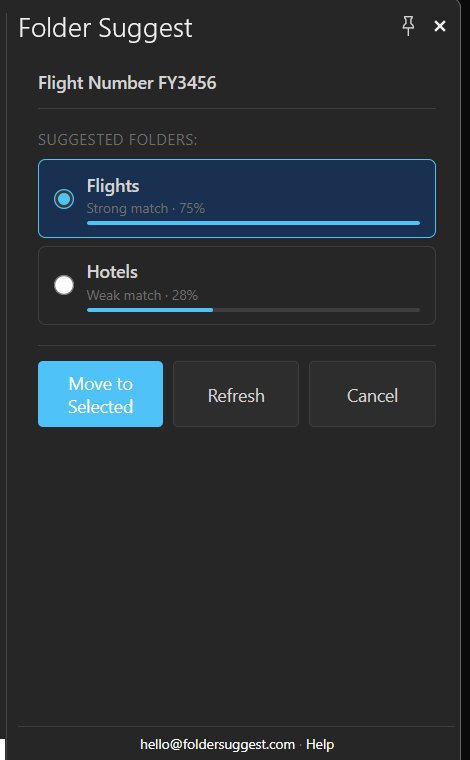
There's no setup and no rules to write. The AI model runs entirely on your device — nothing is sent to any external service — so it works for anyone handling confidential email. Install it from Microsoft Marketplace, open an email, and it starts suggesting folders immediately.
Where this changes your workflow: instead of deciding where to file each email (a decision that takes 3–5 seconds of thought), you just confirm a suggestion. Filing becomes a one-click action rather than a decision, which means you actually do it in real time instead of leaving emails in the inbox to "deal with later."
5Schedule Send to Control When Your Emails Arrive
If you process email early in the morning, late at night, or across time zones, the scheduled send feature lets you compose now and deliver later. This is useful for managing expectations — a reply sent at 11 PM signals something about your working hours that you may not want to signal.
In Outlook desktop: when composing, go to Options → Delay Delivery and set a date and time. In Outlook on the web and new Outlook: click the dropdown arrow on the Send button and choose "Schedule send."
6Use Conversation View and Clean Up to Reduce Clutter
By default, Outlook groups emails in the same thread into a single Conversation view — you see the most recent message, and older ones collapse underneath. Many users turn this off because it can feel confusing, but for high-volume inboxes it's worth keeping on.
The real value is the Conversation Clean Up tool. This removes redundant earlier messages from a thread — if a later email already includes the full quoted history, the earlier standalone messages become clutter. To run it: select a conversation, then Home → Delete → Clean Up Conversation.
Used regularly, Clean Up can meaningfully reduce how many emails you need to process and file.
7Pin the Add-ins You Actually Use
Outlook add-ins (installed from Microsoft Marketplace) are accessed via the app bar or toolbar, but they're only visible when you have an email open. By default, you have to manually open each add-in every time.
In Outlook desktop (classic), some add-ins support a pinned mode — the task pane stays open as you click between emails, refreshing automatically for each one. This is far more useful than opening the add-in every time. Look for a pin icon in the add-in's task pane header.
If you use Folder Suggest, for example, pinning it means folder suggestions appear automatically whenever you open an email — you don't have to click anything to activate it. The pane stays open and updates as you move through your inbox.
Want smarter email filing without writing a single rule? Folder Suggest suggests the right Outlook folder for each email — free, on-device, no configuration required.
Add to Outlook