Outlook Rules vs Folder Suggest: Which Email Filing Method Is Right for You?
Outlook Rules have been around for decades. They're powerful, but they have real limits. This comparison covers when rules are the right tool, and when AI-powered suggestions are the better choice.
Outlook Rules act automatically on conditions you define in advance — sender, subject keyword, recipient — and are ideal for predictable, repetitive mail like newsletters and system notifications. Folder Suggest suggests a folder for each email you open by reading its content, and you confirm with a click. The real trade-off is automatic versus suggested: rules need no attention but only handle patterns you anticipated, while suggestions handle anything but need a click. Most professional inboxes want both — rules for the predictable share, AI filing for the rest.
If you use Outlook folders to organise your email, you've probably hit the same wall eventually. Manual filing is tedious and doesn't scale. Outlook Rules seem like the answer, until your folder structure grows complex enough that they start breaking, conflicting, or just not covering the cases you need.
This article compares Outlook's built-in Rules engine with Folder Suggest, our AI-powered add-in for Outlook. We'll be honest about the strengths and weaknesses of each so you can choose the right tool, or use both together.
What Are Outlook Rules?
Outlook Rules are automated actions triggered when incoming emails match certain conditions. You define the conditions — the sender's email address, a word in the subject line, whether you were CC'd, and so on — and Outlook moves, flags, or categorises matching emails automatically.
Rules have been a core Outlook feature since the 1990s and they work well for the right use case. If you receive a newsletter from the same sender every week and always want it in your "Newsletters" folder, a rule handles that perfectly.
Where Outlook Rules Shine
Rules excel at repetitive, predictable email patterns:
- Newsletters and subscriptions. Any email from a consistent sender address that always belongs in the same folder is a perfect rule candidate.
- System notifications. Automated alerts from monitoring tools, CI/CD pipelines, or enterprise software usually come from fixed sender addresses and can be routed reliably.
- Team distribution lists. If all emails to a specific alias always go to a specific folder, a sender-based rule handles it well.
- Simple, single-client workloads. If you work primarily with one client or project and want everything from their domain in one folder, a domain-based rule is straightforward.
For these patterns, rules are fast, free, and require no additional software. If your inbox is relatively predictable, rules may be all you need.
Where Outlook Rules Fall Short
Rules start to struggle when email becomes varied, complex, or ambiguous, which is true of most professional inboxes.
- Ambiguous emails. A rule based on sender or keywords can't handle an email from your accountant about a specific project. Does it go in "Finance" or "Project X"? Rules force a binary choice; real email often doesn't fit neatly into one bucket.
- Rules that go stale. When a colleague changes jobs, a client changes their email domain, or a project gets renamed, your carefully crafted rules silently stop working. Emails land in the wrong folder, or stay in the inbox with no match at all.
- Rule proliferation. Power users often end up with 30, 50, or even 100+ rules. At that point, the rules themselves become a maintenance burden. Conflicting rules create unexpected results and debugging them is painful.
- Context-dependent filing. Some emails from the same sender legitimately belong in different folders depending on the topic. Rules can't handle that. They're condition-based, not content-aware.
- New folder structures. Rules are written against your current folder setup. When you restructure your folders or add a new project, you need to revisit every related rule.
How Folder Suggest Works Differently
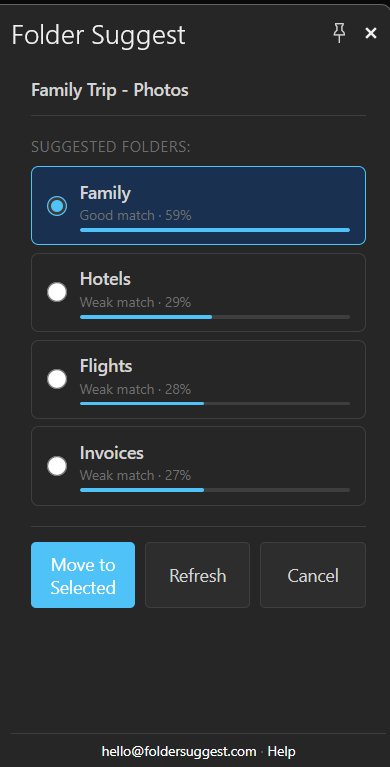
Folder Suggest takes a fundamentally different approach. Instead of matching fixed conditions, it uses an AI model to analyse the content of the email you're reading — the sender, subject, and body — and compares it against the emails already stored in each of your folders.
The result is a ranked list of folder suggestions, sorted by how closely each folder's existing content matches the current email. There are no rules to write, no conditions to maintain, and no configuration required. It works for any email, any folder structure, immediately after installation.
The AI model runs entirely on your device. Nothing leaves your machine — not the email content, not the folder names, not the suggestions. It's on-device AI, not a cloud service.
Head-to-Head Comparison
| Feature | Outlook Rules | Folder Suggest |
|---|---|---|
| Setup required | Yes — rules must be written manually | None — works immediately on install |
| Handles ambiguous emails | ✗ No — binary conditions only | ✓ Yes — ranks folders by meaning |
| Context-aware filing | ✗ No — ignores email content | ✓ Yes — reads and understands content |
| Adapts when senders change | ✗ No — rules break silently | ✓ Yes — re-analyses each email fresh |
| Maintenance overhead | High — rules accumulate and conflict | None |
| Works for predictable emails | ✓ Yes — ideal for this | ✓ Yes — but overkill |
| Runs automatically (no click needed) | ✓ Yes — fully automatic | ✗ No — you open the pane and confirm |
| Privacy | Email stays in Outlook (local) | All processing on-device, nothing sent externally |
| Cost | Free (included in Outlook) | Free |
| Works offline | ✓ Yes | ~ Yes, once model is downloaded |
The Key Trade-off: Automatic vs. Suggested
There's one important difference that isn't captured in a features table: Outlook Rules act automatically. When a matching email arrives, it's moved immediately, without your involvement. Folder Suggest, by contrast, makes a suggestion — you still click to confirm the move.
For some users, fully automatic filing is the goal. If you trust a rule completely, having it run invisibly is an advantage. But that trust is hard-earned — a misconfigured rule can silently move emails to the wrong folder for weeks before you notice. (For a walkthrough of every option, see how to automatically file emails in Outlook.)
Folder Suggest keeps you in control. You see the suggestion, you decide. That's a small extra step, but it means you're never surprised to find an important email has been filed away somewhere unexpected.
Which Should You Use?
The honest answer is: both. They solve different problems and complement each other well.
Use Outlook Rules for:
- Newsletters and subscription emails from consistent sender addresses
- Automated system notifications from known sources
- Emails to specific distribution lists that always belong in the same folder
- Any email pattern that is completely predictable and never changes
Use Folder Suggest for:
- Everything rules can't handle — emails with varied content, ambiguous topic, or senders who change over time
- Emails that could belong in multiple folders depending on context
- Any inbox with a complex, multi-level folder structure
- Users who find rules too brittle or time-consuming to maintain
Keep your existing rules — they'll handle the predictable stuff automatically. Use Folder Suggest for the rest. Together, they cover the full range of what lands in a professional inbox.
Getting Started with Folder Suggest
Folder Suggest is free to start and available on Microsoft Marketplace. Installation takes about 30 seconds: open Outlook, go to Get Add-ins, search for "Folder Suggest", and click Add. No account creation, no configuration, no rules to write.
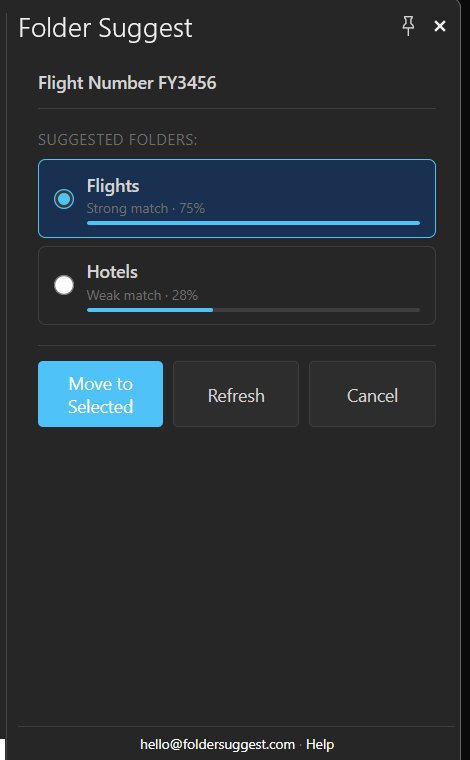
The first time you run it, the AI model downloads (~20 MB) and scans your folders — this takes 1–3 minutes depending on your folder count. After that, it's fast. Open any email, click "Suggest Folder" in the ribbon, and you'll have a ranked list of suggestions in seconds.
Tired of Outlook Rules breaking or not covering everything? Try Folder Suggest — free, no configuration required.
Add to Outlook