How to Reach Inbox Zero with AI Email Filing in Outlook
Inbox Zero isn't about spending more time on email. It's about making email processing so frictionless that a clear inbox stops feeling like an impossible goal.
Reaching Inbox Zero in Outlook comes down to five steps: build a folder structure worth filing into (5–15 folders by project, client or responsibility), set rules for the predictable email, use AI filing for everything rules can’t anticipate, process in scheduled batches rather than continuously, and handle each email once. The step most people skip is the third — rules only cover mail that follows a fixed pattern, which is a minority of a professional inbox. Folder Suggest fills that gap by reading each email on-device and ranking the folders it most likely belongs in, so filing is one click rather than a decision.
If your Outlook inbox sits permanently at 200, 500, or 2,000 unread messages, you probably know the feeling: a vague, nagging sense that something important might be buried in there, and that you'll deal with it "properly" at some point.
Inbox Zero is the practice of treating your inbox as a processing queue rather than a storage system. Nothing lives there unless it still requires action. When you're done with an email, it either gets deleted, archived, or filed in the appropriate folder.
The problem isn't that professionals don't want an organised inbox. The problem is that filing takes time and effort. When you're busy, moving each email to its correct folder is the last thing you want to do. So emails accumulate, and the inbox becomes an archive by default.
This guide walks through a practical Inbox Zero approach for Outlook, with AI-powered folder suggestions handling the most tedious part — deciding where each email belongs.
The Core Principle: Your Inbox Is a Queue, Not a Folder
Traditional email habits treat the inbox as a permanent home for everything. Important emails stay there so you can find them. Unread count grows as new messages arrive. The inbox becomes both a task list and an archive simultaneously.
Inbox Zero flips this. Your inbox is where email arrives, not where it lives. Every email gets processed: replied to, deleted, flagged as a task, or filed. The inbox stays empty (or close to it) because nothing is stored there long-term.
This sounds like more work. It isn't — as long as filing is fast. AI folder suggestions solve this.
Step 1: Build a Folder Structure Worth Filing Into
Before anything else, your folder structure needs to be useful. If you have one giant "Archive" folder and nothing else, AI suggestions won't help much. There's nowhere meaningful to file to.
A good folder structure is:
- Meaningful at the top level. Folders should correspond to the areas of your work that matter — clients, projects, teams, topics. Avoid generic names like "Miscellaneous."
- Not too deep. Two levels of nesting is usually enough. Deeply nested folders slow down navigation and make the structure harder to maintain.
- Populated with existing emails. AI filing works by comparing new emails against the content already in your folders. Each folder should contain at least 5–10 emails for reliable suggestions.
If your current folder structure is a mess, this is worth spending 30 minutes on before you start. A clean, logical structure is the foundation everything else builds on.
Step 2: Set Up Basic Rules for Predictable Email
Some email is completely predictable — newsletters from consistent senders, system notifications, emails to a specific team alias. These are ideal candidates for Outlook Rules, which move matching email automatically without any manual action.
Set up rules for:
- Newsletters and subscriptions (by sender domain or "unsubscribe" keyword in body)
- Automated system alerts (monitoring, CI/CD, HR systems)
- Internal team mailing lists or distribution lists
Rules handle the predictable volume so that what lands in your inbox for manual processing is the email that genuinely needs your attention. See our guide to Outlook Rules vs Folder Suggest for help deciding which emails to automate with rules and which to handle with AI suggestions.
Step 3: Install Folder Suggest for Everything Else
Once rules handle the predictable email, everything else — client messages, project emails, varied correspondence — goes to AI-powered filing. This is where Folder Suggest comes in.
Install Folder Suggest from Microsoft Marketplace (it's free to start — search "Folder Suggest" in Get Add-ins). On the first run, it downloads the AI model and scans your folders. This takes 1–3 minutes. After that, it's fast.
The workflow is simple:
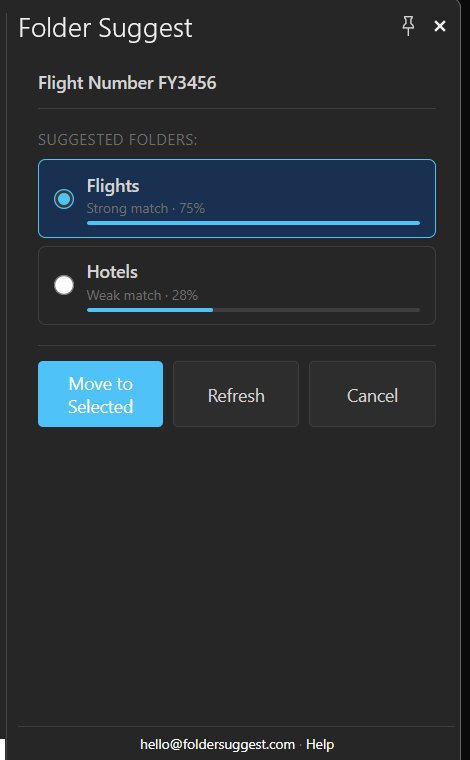
- Open an email.
- Click "Suggest Folder" in the ribbon.
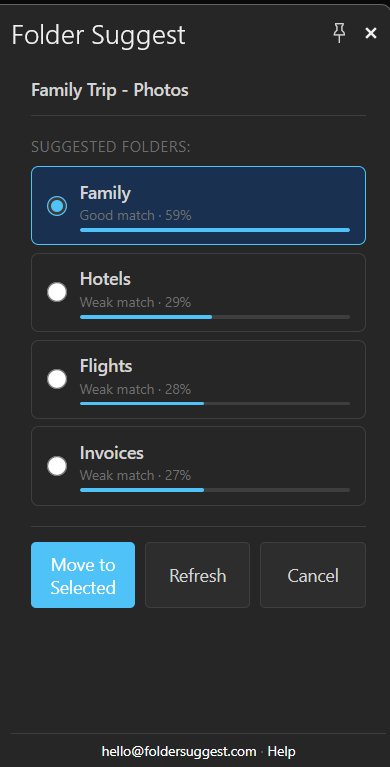
- Review the top suggestion (it's usually right).
- Click "Move to Selected."
The whole thing takes three to five seconds. For most emails, the top suggestion is correct and you're done in one click.
Step 4: Process Email in Batches, Not Continuously
One of the biggest contributors to inbox overwhelm is checking email constantly. Every notification pulls you out of deep work. By the time you've looked at and dismissed the email, you've lost your train of thought, but the email is still in the inbox, unprocessed.
A more effective habit is batch processing: check and process email two or three times a day at scheduled times (say, 9am, 1pm, and 4pm), and close your inbox between sessions. When you open it, your goal is to reach zero before closing it again.
With Folder Suggest, this takes far less time than it used to. Instead of deciding where to file each email (and dragging it there), you review the AI suggestion and click once. A batch of 20 emails that might have taken 10 minutes to file manually now takes 2–3 minutes.
Step 5: Handle Each Email Once
The most common Inbox Zero failure mode is leaving emails in the inbox after reading them. You open an email, decide it needs a reply but not right now, and leave it there "so you remember." Soon, the inbox is full of "I'll deal with this later" emails — and you're back where you started.
The discipline of Inbox Zero is handling each email exactly once, choosing from four options:
- Delete or archive it — if it needs no further action and you don't need to keep it.
- Reply immediately — if it takes less than two minutes, do it now, then file or delete.
- Add it to your task list — if it needs action later, flag it for follow-up (Microsoft To Do integrates directly with Outlook), then file the email.
- File it — if it's for reference only with no action needed, use Folder Suggest to move it in one click.
The key is that "leaving it in the inbox" is not one of the options.
Dealing with the Backlog
If your inbox has thousands of old emails, clearing the backlog before starting a new system is daunting. Here are two approaches:
- The clean break. Create a folder called "Old Inbox — [Year]" and move everything in it with one Ctrl+A, move action. Your inbox is now empty. Work through the old folder gradually over the following weeks using Folder Suggest.
- The gradual approach. Start applying the Inbox Zero workflow to new email only. Process the backlog in 30-minute sessions, using Folder Suggest to file in bulk. Prioritise emails from the last 3 months first.
Either approach works. The clean break is psychologically faster. The immediate relief of an empty inbox motivates you to maintain the system. But if the backlog contains time-sensitive items, the gradual approach lets you review it more carefully.
Maintaining Inbox Zero Long-Term
The hardest part of Inbox Zero isn't reaching it. It's maintaining it when you're busy. A few habits that help:
- Pin the Folder Suggest pane in Outlook classic desktop. The pane refreshes automatically as you switch emails, so suggestions are ready before you even click the ribbon button.
- Don't check email first thing. Starting your day in the inbox puts you in reactive mode. Process email at a scheduled time, not continuously.
- Unsubscribe aggressively. Every newsletter or notification you don't need is friction you don't need to process. Use Outlook's unsubscribe button or an add-in like Unroll.Me.
- Trust the suggestions. The biggest time cost in manual filing is the decision — where does this go? Folder Suggest makes that decision for you. If the top suggestion is 70%+ confidence, accept it without second-guessing.
The Result: Email That Doesn't Own You
Inbox Zero isn't a philosophy about spending less time on email. It's a system that makes email processing deterministic. Each email has a defined outcome, and the outcome happens quickly. When the process is fast, you do it consistently. When you do it consistently, the inbox stays clear.
AI-powered filing removes the largest source of friction in that process: the decision of where each email belongs. With Folder Suggest handling that, Inbox Zero becomes achievable, not just for the occasional tidy person, but for anyone willing to change one habit at a time.
Start with Folder Suggest — free, no setup, works from day one.
Add to Outlook