Can Microsoft Copilot Move Emails to Folders in Outlook?
A tested answer to the question the web keeps getting wrong: what Copilot can actually do with your Outlook folders, where it falls short, and what to use instead.
Yes, technically. As of June 2026, you can ask Microsoft Copilot in Outlook to move an email to a folder by name. Type something like "move this to the Client X folder" in the Copilot chat pane, and it will do it. Copilot can also create inbox rules from a plain-language request (for example, "move emails from Alex to the Read Later folder"), which then move future matching emails on arrival. And it can archive the open message to the single Archive folder, or flag, pin, and delete it.
So Copilot can move an email to a folder. The problem is how. You need to already know which folder the email belongs in, type the exact name into the chat, wait several seconds for a cloud round-trip, and confirm. Copilot does not look at the email and suggest which folder fits. For one or two emails, that's fine. For anyone triaging dozens of messages a day across many folders, the workflow is slower than dragging the email yourself. For that kind of filing, you need something that reads the message and suggests the right folder for you, like Folder Suggest.
Why this question is so confusing
Search for "can Copilot move emails to folders" and you'll find contradictory answers. Several articles claim Copilot "routes emails to folders" or "automatically categorises emails into folders." Microsoft's own documentation describes something much narrower, and our testing confirms the narrower version. The gap between the marketing language and the actual experience is where the confusion starts.
Copilot is good at turning a sentence into a rule, and it can execute a move if you tell it exactly where to go. It is not an agent that reads each new email and decides where it belongs.
What Copilot in Outlook actually does with email
According to Microsoft's support documentation, Copilot's email-organisation capability covers three areas.
1. It moves emails on command. You can tell Copilot to move the current email to a specific folder. You type the folder name, Copilot executes the move. If the folder doesn't exist, it may offer to create it. This works, but it requires you to know the destination and spell it out every time.
2. It creates and views rules from natural language. You describe what you want ("move emails with 'Invoice' in the subject to the Invoices folder") and Copilot translates that into a standard Outlook inbox rule. It shows you a summary and asks for confirmation before saving. To edit, delete, reorder, or disable a rule afterwards, you use Outlook's own Rules settings. Copilot creates them, it doesn't manage them beyond that.
3. It triages individual messages. Copilot can pin, flag, archive, delete, or mark messages as read or unread, across several selected emails at once. Archiving moves a message to the Archive folder, not to a folder you pick.
Copilot also summarises threads, drafts replies, and prioritises your inbox. Useful features, but none of them is "look at this email and tell me which folder it belongs in."
Where Copilot falls short for email filing
The ability to move an email on command sounds useful in isolation. In practice, three things make it a poor fit for real email triage.
No folder suggestions. Copilot does not read the message, compare it against your existing folders, and recommend a destination. You must already know where the email belongs. If you have 40 or 50 folders, that means recalling the right one from memory or scrolling through your folder list before you can even type the command.
Slow execution. Every Copilot action runs in the cloud. Each request takes several seconds to come back. When the task is "put this email in the right folder," waiting on Copilot is often slower than just dragging the message yourself, and much slower than a local add-in that responds in about a second.
Typing friction. You need to open the Copilot pane, type a sentence with the folder name, and wait for confirmation. Multiply that by 30 or 40 emails in a morning triage session and the time adds up quickly. Compare that to a single click on a pre-selected folder suggestion.
These limitations matter most for the emails that already take the longest to file:
- First emails from a new sender. No existing rule matches, and you may not immediately remember which folder fits.
- Ambiguous topics. An email from your accountant about one specific project doesn't fit a sender-based rule cleanly, and you still have to decide the folder yourself before telling Copilot.
Rules are condition-to-action automation that runs on arrival. They do not read content the way you do. Copilot inherits that limit because what Copilot builds is an Outlook rule. We cover that distinction in depth in Outlook Rules vs Folder Suggest.
Copilot's email features also require a paid Microsoft 365 Copilot license, an add-on on top of a standard Microsoft 365 subscription.
Copilot vs Outlook Rules vs Folder Suggest
| Capability | Copilot | Outlook Rules | Folder Suggest |
|---|---|---|---|
| Moves email to a chosen folder | Yes, but you type the folder name and wait | ✗ No (arrival-only) | ✓ Yes, one click |
| Suggests which folder to use | ✗ No | ✗ No | ✓ Yes, ranked by match |
| Creates automation for future email | ✓ Yes (builds rules) | ✓ Yes | ✗ No (files on demand) |
| Reads message content to pick a folder | ✗ No | ✗ No (matches conditions) | ✓ Yes |
| Handles new senders without setup | Partly (you still choose the folder) | ✗ No | ✓ Yes |
| Speed on the message in front of you | ✗ Slow (cloud + typing) | n/a | ✓ ~1 second, on-device |
| Needs a paid licence | ✗ Yes (Copilot licence) | ✓ No | ✓ No |
| On-device, content stays private | ✗ No (cloud) | n/a | ✓ Yes |
So how do you actually file emails into the right folder?
It depends on whether the email follows a pattern.
For predictable, repeating email (newsletters, system alerts, a client whose mail always belongs in one place), a rule is the right tool. Copilot is a convenient way to set one up by describing it in plain language. Once the rule exists, those emails file themselves on arrival.
For everything that doesn't follow a fixed pattern, you want something that reads the message and suggests a folder right away. Folder Suggest is a Outlook add-in built for exactly this. Open any email and it analyses the sender, subject, and body, then ranks your existing folders by how well they match. The top match is pre-selected, and one click moves the email. No rules to write and no training period.
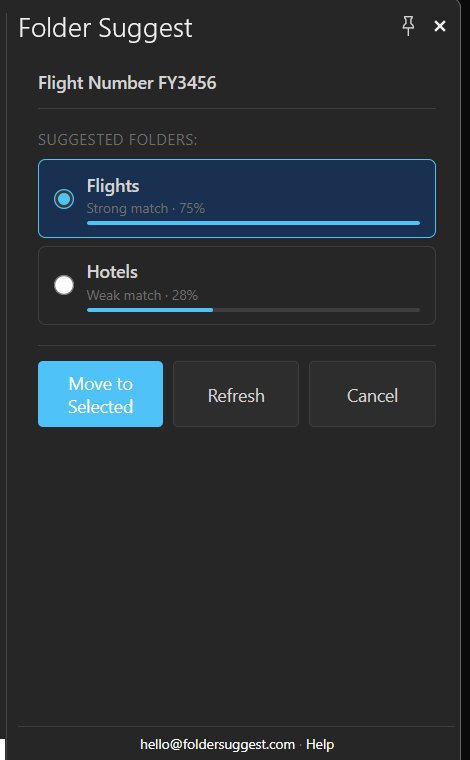
The AI model runs entirely on your device, so your email content never leaves your machine and suggestions come back in about a second. It works from the first email you open, against whatever folder structure you already have, and it costs nothing.
The two approaches sit together well. Let Copilot or rules handle the predictable traffic, and use Folder Suggest for the rest, which is usually where the filing time actually goes.
Stop typing folder names into Copilot. Get the right folder suggested for you in one second, and file with one click.
Add to OutlookFrequently Asked Questions
Can Microsoft Copilot move emails to folders in Outlook?
Yes, technically. You can ask Copilot to move an email to a specific folder by typing the folder name in the chat pane. But Copilot does not suggest which folder to use. You need to already know the destination, type out the name, and wait for a cloud round-trip. For anyone filing more than a few emails a day, a dedicated filing tool like Folder Suggest is significantly faster.
Can Copilot automatically sort or organise my Outlook emails into folders?
Not on its own. Copilot can create inbox rules that sort future email by sender, subject, or other conditions. But it does not look at each incoming email, decide which folder it belongs in, and move it there. Rules only act on patterns you define in advance, so new senders and one-off topics still require manual filing or a content-aware tool.
Why is Copilot slow at filing emails in Outlook?
Every Copilot action runs in the cloud, so each request involves a network round-trip that takes several seconds. You also need to type out the folder name and confirm the action. Compare that to a local add-in like Folder Suggest, which suggests the right folder in about one second and files the email with a single click.
Is creating a rule with Copilot the same as automatic email filing?
Not quite. A Copilot-created rule is a standard Outlook rule. It only files emails that match the condition you described, and only on arrival. It will not help with the first email from a new contact or with messages whose topic doesn't fit a clean rule. Filing that adapts to content needs a different approach.
What is the best way to file emails into folders in Outlook?
For repeating patterns, Outlook Rules (which Copilot can help you create) file matching email on arrival. For everything else, a content-aware add-in like Folder Suggest reads each email and suggests the right folder with one click, no rules required. Most people combine both: rules for predictable email, Folder Suggest for the rest. Folder Suggest is free to start, runs on your device, and works from the first email you open.