The Best Free AI Email Sorter for Outlook (Automatically Moves Emails to Folders)
Outlook can automatically move emails to folders — but the built-in tools only get you so far. Here's where AI makes the difference, and the best free option available today.
An AI email sorter reads what an email is actually about — sender, subject and body — and suggests where it belongs, instead of matching fixed conditions the way Rules do. Outlook’s built-in options (Rules, Sweep, Quick Steps) all require you to define the pattern in advance, so they cover predictable mail and little else. Folder Suggest is an Outlook add-in that takes the AI approach: it runs the model on your own device, ranks your existing folders for each email, and files with one click. There is nothing to configure and no email content leaves your machine.
If you've searched for a way to get Outlook to automatically sort your emails, you've probably landed on two options: set up Rules, or try a paid add-in. Neither is ideal. Rules are powerful but brittle. Most paid tools are either cloud-based (your emails leave your machine) or expensive for what they offer.
There's a third option: a free, on-device AI email sorter that works entirely inside Outlook, learns from your folder structure, and never sends your email data anywhere. That's what this post is about.
What Does "AI Email Sorter" Actually Mean?
An AI email sorter analyses the content of each incoming email — the sender, subject line, and body — and matches it to the folder where it most likely belongs. Instead of matching rigid conditions like a rule would, it uses a language model to understand the meaning and context of the message.
The practical difference is significant. A rule can move an email from a specific sender to a specific folder. An AI sorter can look at an email with the subject "Re: Q2 proposal — follow-up questions" and figure out it belongs in your Client Projects > Acme folder, even if you've never written a rule for that sender or that subject line.
That's the core promise: context-aware filing that works even for email you couldn't have predicted in advance.
How to Automatically Move Emails to Folders in Outlook (Built-In Methods)
Before reaching for a third-party tool, it's worth knowing what Outlook already offers. There are two main built-in ways to automatically move emails to folders:
- Outlook Rules: The most powerful built-in option. You create conditions (sender address, keywords in subject, whether you were CC'd, etc.) and Outlook applies them automatically on arrival. Rules run silently in the background and work well for predictable, high-volume email like newsletters or notifications.
- Quick Steps: One-click shortcuts that apply a sequence of actions to an email, including moving it to a folder. Quick Steps aren't automatic — you trigger them manually — but they cut the process down to a single click once you've set them up.
For a deeper look at setting up Outlook Rules, see our guide on how to automatically file emails in Outlook.
Where Built-In Tools Fall Short
Rules and Quick Steps handle the easy cases well. But most inboxes contain a lot of email that doesn't fit neatly into those categories:
- Emails from new contacts — You can't write a rule for a sender you haven't emailed before, but the content might make it obvious where it belongs.
- Context-dependent emails — An email from your accountant might go in Finance, Client X, or Project Y depending on what it's about. A rule based on sender alone will always get this wrong.
- Rules that conflict or fall out of date — Sender addresses change. Projects end. A rule you set up a year ago might now route emails to a folder you never check.
This is exactly the gap AI is designed to fill. See our full comparison of Outlook Rules vs Folder Suggest if you want to understand when each approach makes sense.
Folder Suggest: A Free AI Email Sorter for Outlook
Folder Suggest is an Outlook add-in that uses on-device AI to suggest the right folder for every email you read. The model runs locally — nothing is sent to a server, no account is required, and no data leaves your machine.
It works with Outlook on Windows (classic and new), Outlook for Mac, and Outlook on the web, with a Microsoft 365, Exchange Online, or personal Microsoft account. Installation takes about 30 seconds.
What makes it different from other approaches:
- No rules to write. You don't define any conditions. The AI reads your existing folder names and the email content, and figures out the match itself.
- No cloud dependency. The language model runs entirely on your device. There's no API key and no privacy concern about your emails being processed externally.
- Works with your existing structure. Folder Suggest doesn't ask you to reorganise anything. It reads the folders you already have and suggests the best fit among them.
- Handles ambiguity. When an email could reasonably go in two or three places, Folder Suggest shows ranked alternatives so you can choose — rather than silently routing it somewhere wrong.
How It Works
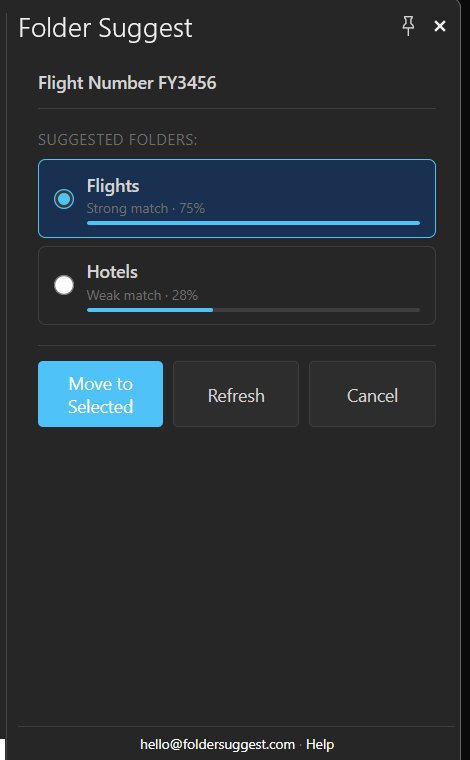
The workflow is simple. Open an email in Outlook. The Folder Suggest panel appears on the right side of the reading pane and shows a ranked list of folder suggestions with confidence scores. Click "Move to Selected" and the email is filed.
Here's an example: you receive a flight booking confirmation with the subject "Flight Number FY3456." Folder Suggest immediately identifies it as a travel email and suggests your Flights folder with a 75% strong match.
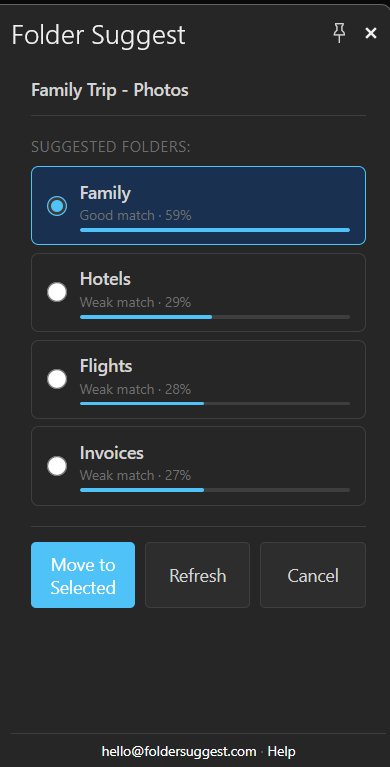
For a more ambiguous email — say, "Family Trip - Photos" — the AI surfaces the most likely folder (Family, at 59%) while showing Hotels, Flights, and Invoices as lower-ranked alternatives. You can confirm the suggestion or pick a different one in a single click.
Over time, the suggestions get more accurate as the model learns which folders you actually use for which kinds of email.
Is It Really Free?
The AI folder suggestions are always free and unlimited — you never pay to see where an email should go. The free plan lets you file up to 5 suggested emails per day at no cost, with no account required. If you file more than that, Pro is €7.99/month (or €79/year) for unlimited filing. No feature is locked away — you always see every suggestion.
The reason it can be free is the architecture: because the AI runs on your device rather than on a server we operate, there's no per-query inference cost. You're using your own hardware to run the model, so we don't have a bill to pass on to you.
If you want to understand how on-device AI fits into a broader inbox-zero workflow, see our post on reaching inbox zero with AI email filing in Outlook.
Want Outlook to automatically suggest the right folder for every email — for free? Install it in about 2 minutes.
Add to Outlook