Email Management for Consultants, Lawyers, and Accountants
A professional inbox looks nothing like a standard one. Multiple clients, multiple matters, complex filing decisions, and a constant stream of emails that all feel urgent. Here's how to get it under control.
Consultants, lawyers and accountants share one inbox problem: mail arrives for many clients at once, and it has to be separated by matter to stay useful. A workable structure is one folder per active client or matter, archived at completion rather than deleted. Outlook Rules do not scale here because each new client needs new rules and mail often spans several matters. Folder Suggest suits this workflow better — it reads each email and ranks your existing client folders, so a new client needs no configuration and filing stays a one-click step as the matter list grows.
If you work across multiple clients, projects, or matters simultaneously, you already know that standard inbox advice doesn't quite apply to you. "Just use Inbox Zero" sounds straightforward until your inbox contains emails for six different clients, three of which need responses today and two of which relate to the same client but completely different engagements.
The challenge isn't volume. It's complexity. And the filing problem is one of the hardest parts to solve, because the right place for any given email depends on context that's hard to encode into rigid rules.
The Multi-Client Inbox Problem
Professionals managing multiple clients face a set of email challenges that don't affect most workers:
- The same sender, multiple contexts. Your accountant might email you about three different client engagements. The sender-based filing rules that work fine for a standard inbox are useless here.
- Cross-matter emails. A single email can relate to multiple clients or projects — a kickoff call involving two clients, a multi-firm transaction, or a shared vendor. Where does it go?
- Client-specific confidentiality. Documents and communications for different clients must stay strictly separate. A misfiled email isn't just inconvenient — in some professions, it's a liability issue.
- Deep folder structures with similar names. When you have 30 client folders, each with subfolders for invoices, correspondence, and deliverables, finding the right destination folder at filing time takes real cognitive effort.
- Volume spikes around deadlines. Email volume isn't steady — it peaks when a deal is closing, when a filing deadline approaches, when an audit is underway. The temptation during busy periods is to leave everything in the inbox and file later. "Later" rarely comes.
Building a Folder Structure That Works for Professionals
The right structure depends on how your work is organised. Most professionals find one of two approaches works well:
Client-First Structure
Works best for: consultants, accountants, financial advisers, account managers.
One top-level folder per client, with subfolders inside for the categories you need. The top-level client folder is the constant — it doesn't change when projects start or end. Subfolders below it can be adjusted to match your engagement structure.
Matter-First Structure
Works best for: lawyers, solicitors, barristers, compliance professionals.
When a single client may have dozens of separate matters running in parallel — each with strict confidentiality requirements — it's usually better to organise by matter rather than by client. The matter becomes the primary filing unit.
Why Outlook Rules Don't Scale for Professional Inboxes
Outlook Rules are the first thing most people try when they want to automate filing. For a standard inbox with predictable senders, they work well. For a professional inbox, they run into problems quickly.
The core issue is that rules are sender-based or keyword-based — they can't understand context. A rule that says "if from: partner@smithjones.co.uk → file in Smith v Jones" works until that partner also sends you something unrelated to the case. Or until they move firms. Or until you have two cases involving the same client.
- Too many rules. Complex professional inboxes can end up with 50, 80, even 100+ rules. At that scale, rules conflict with each other, create unexpected results, and become a maintenance burden in their own right.
- Silent failures. When a rule stops matching — because a sender's email address changed, or a project was renamed — emails simply land in the inbox unprocessed. You may not notice for days.
- No handling of nuance. An email from your accountant marked "Project Alpha — Invoice Query" might belong in a client folder, a finance folder, or a project folder depending on its content. Rules can't make that call.
If you'd like to understand exactly where rules work well and where they fall short, we've written a detailed comparison: Outlook Rules vs AI Filing.
How AI-Assisted Filing Fits a Professional Workflow
The alternative to rules is manual filing — which is accurate but slow. Every email requires you to stop, read it, decide where it goes, navigate to the right folder, and move it. For a professional receiving 100+ emails a day across multiple client engagements, this adds up to a significant drain on billable time.
This is where AI-powered filing tools earn their place. Folder Suggest reads the full content of the email you're currently viewing — sender, subject, and body — and compares it against the emails already stored in your folders. It surfaces the best matching folder as a suggestion, ranked by confidence.
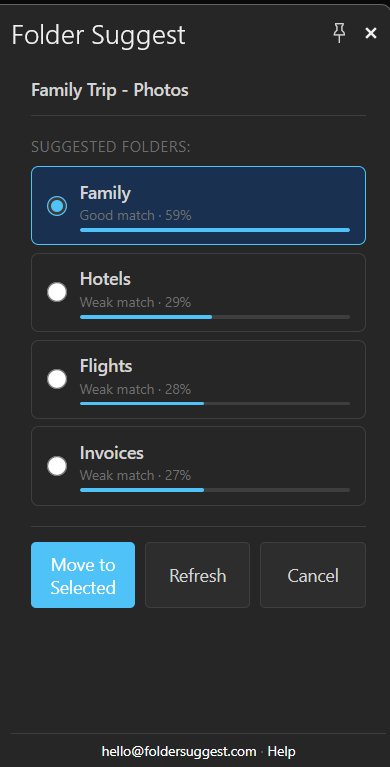
For a professional inbox, this matters because the AI understands content — not just sender addresses. An email from your accountant about the Acme Corp matter will be matched to the Acme Corp folder based on the subject and body content, even if the same accountant sends you emails about three other clients.
A few specific benefits for professional users:
- Handles ambiguity. When an email could go in two or three places, Folder Suggest shows you the top-ranked options. You can override its suggestion with one click.
- Adapts as your folder structure grows. Add a new client folder today and it's immediately available as a suggestion for tomorrow's emails. No rule to write.
- Completely on-device. For professionals handling confidential client data, this matters. The email content never leaves your machine — all processing is done locally using a small AI model that runs inside Outlook. Nothing is sent to a cloud service.
- Works during high-volume periods. The one-click filing experience makes it realistic to file emails even during the busiest periods, rather than letting them pile up in the inbox.
A Practical Workflow for Professional Email Management
The most effective professional email workflows combine a well-designed folder structure with a consistent daily process:
- Process email twice a day, not continuously. Constant inbox monitoring is one of the biggest time drains for professionals. Two processing sessions — morning and end of day — is usually enough to stay on top of things.
- File on first read. Every email you open should be filed immediately after reading. Leaving it in the inbox to "deal with later" creates a second inbox you have to manage.
- Separate action from reference. If an email needs a response or action, flag it or move it to an "Action Required" folder. Once done, file it in its permanent location. Don't mix email you need to act on with email you've already handled.
- Use AI suggestions for the filing decision. Rather than stopping to decide where each email goes, open Folder Suggest and let it surface the most likely destination. Review the suggestion, confirm, and move on.
- Archive closed matters regularly. When a client engagement ends or a matter closes, move its email folder into an archive folder. This keeps your active folder tree manageable.
Folder Suggest is free to start and works immediately after installation — no rules to set up, no configuration required. Just smarter filing across all your clients and matters.
Add to Outlook