5 Alternatives to Outlook Rules for Automatic Email Filing
Outlook Rules have been the go-to tool for inbox automation for decades. But they come with real limits, and plenty of users find themselves looking for something better. Here are five alternatives worth knowing about.
The five practical alternatives to Outlook Rules are Quick Steps (one-click manual filing), Sweep rules (bulk cleanup by sender), Search Folders (saved views instead of moving mail), third-party rule-based tools like SimplyFile and Clean Email, and AI-powered filing. Quick Steps, Sweep and Search Folders are built into Outlook and free. The first four still depend on you defining the pattern; only AI-powered filing works on email nobody wrote a rule for, which is most of a professional inbox. Folder Suggest takes that approach — it reads each email on-device and ranks the folders it most likely belongs in, with no rules to write or maintain.
Outlook Rules are powerful when they work. Define a condition — the sender's address, a word in the subject line, whether you were CC'd — and Outlook moves, flags, or categorises every matching email automatically. For predictable, repetitive email patterns, they're genuinely effective, and one of several ways to automatically file emails in Outlook.
But most professional inboxes aren't predictable. Rules break when senders change email addresses. They don't know what an email is about, only whether it matches a fixed pattern. They don't apply to sent mail by default. And once you have 40 or 50 of them, maintaining them becomes its own job. That's when people start looking for an alternative to Outlook Rules.
This article covers five approaches — from built-in Outlook features to third-party tools — with honest notes on where each one works well and where it falls short.
Why Outlook Rules Fall Short at Scale
Before we get into the alternatives, it's worth being specific about what the problems are. Rules fail in predictable ways:
- They don't handle new senders. A client joins a new firm and emails from a new address. Your rule for their old address stops matching. The emails land in the inbox with no filing.
- They're context-blind. The same colleague might send emails that belong in three different project folders. A rule based on sender address can only pick one.
- They go stale silently. Rules don't alert you when they stop matching anything. Emails you expected to be filed just accumulate in the inbox.
- They require manual setup for every pattern. Every new client, every new project, every new newsletter needs its own rule written by hand.
- They don't cover sent mail. By default, rules only apply to incoming messages. Filing sent items requires separate configuration or manual work.
With that context, here are five alternatives — each solving a different subset of these problems.
1 Quick Steps
Quick Steps are one of the most underused features in classic Outlook for Windows. They let you define a multi-action shortcut — move to a folder, mark as read, flag, and more — and trigger it with a single click or keyboard shortcut.
How they work
You create a Quick Step in the Home ribbon (the Quick Steps group). Name it, choose actions, and optionally assign a keyboard shortcut. After that, selecting any email and pressing the shortcut executes all the actions at once. A common setup: "Move to Client X and mark as read" triggered by Ctrl+Shift+1.
What Quick Steps are good for
- Filing specific emails faster when you already know where they go
- Chaining actions that you do together repeatedly (move + mark read + flag)
- Reducing mouse movement for keyboard-oriented users
Limitations
Quick Steps are not automatic — you trigger them manually. They're faster than drag-and-drop, but you still have to decide where each email goes and press the shortcut. If you have a large or frequently changing folder structure, keeping Quick Steps up to date becomes a maintenance task of its own.
Quick Steps also only work in classic Outlook for Windows. They're not available in New Outlook or Outlook on the web.
2 Sweep Rules (Outlook.com and Outlook on the web)
Sweep is a simplified automation feature available in Outlook.com and Outlook on the web (not in desktop Outlook). It offers a small set of automated actions focused on managing high-volume senders.
How it works
Open an email and select Sweep from the toolbar (or the three-dot menu). You'll see options to automatically move, delete, or manage all emails from that sender going forward. Options typically include: move all existing and future emails from this sender, keep only the latest email and delete the rest, or delete anything older than a set number of days.
What Sweep is good for
- Quickly routing newsletters and high-volume senders you don't want cluttering your inbox
- Setting up sender-based automation faster than building a full Rule
- Users who work primarily in Outlook on the web or Outlook.com
Limitations
Sweep's options are much more limited than full Outlook Rules. You can't set conditions based on subject, CC, or keywords — only the sender. There's no support for complex logic, and the feature is entirely absent from classic Outlook for Windows and New Outlook for Windows. It's also more of a cleanup tool than a filing tool; the "keep only latest" and deletion options are primarily useful for reducing volume, not organising into folders.
3 Search Folders
Search Folders offer a fundamentally different philosophy: instead of moving emails into folders, they let you browse emails by topic without changing where they're stored. A Search Folder is a virtual view that shows all emails matching certain criteria, drawn from anywhere in your mailbox.
How they work
In classic Outlook for Windows, right-click Search Folders in the folder pane and choose New Search Folder. You can create folders based on unread status, flagged items, sender, size, keywords, or custom criteria you define. Emails appear in the Search Folder view as if they were filed there, but they aren't actually moved — they stay in their original location.
What Search Folders are good for
- Reading all emails about a topic across multiple real folders in one place
- Seeing all unread emails from a specific person or project at a glance
- Avoiding the overhead of filing while still being able to find emails by topic
Limitations
Search Folders are read-only aggregations — they don't actually organise your email. Your inbox still accumulates every message. If the goal is to keep your inbox empty by filing emails into folders, Search Folders don't help with that. They're more useful as a browsing tool on top of an existing folder structure than as a replacement for filing.
Search Folders are also only available in classic Outlook for Windows. They don't exist in New Outlook or Outlook on the web.
4 Third-Party Rule-Based Tools
Several third-party tools try to address the limitations of Outlook's built-in Rules by providing a better interface or more powerful conditions. Two worth knowing about:
Clean Email
Clean Email is a web-based email management service that works across multiple email clients and providers, including Microsoft 365. It offers bulk actions, automation rules, and inbox organisation features. Its automation rules are more intuitive than Outlook's native Rules builder and can handle multiple conditions in a cleaner UI. The main trade-off: it accesses your email via OAuth, which means your email data flows through Clean Email's service.
QuickFile
QuickFile is an Outlook add-in that focuses on improving the filing workflow itself — it makes it faster to move emails to folders, and includes its own suggestion engine based on recent activity. It's less about replacing Rules and more about making the manual filing process faster. It runs locally and works with classic Outlook for Windows.
Limitations of rule-based tools generally
All rule-based tools share the same underlying problem: rules require someone to write them. They don't handle emails you haven't anticipated, and they need updating as your work changes. A better rules UI is still a rules UI. These tools are a meaningful improvement over Outlook's built-in interface, but they don't change the fundamental model.
5 AI-Powered Filing with Folder Suggest
AI-powered filing is the most significant break from the rules model. Instead of defining conditions, you let an AI model figure out where each email belongs by understanding what it's about.
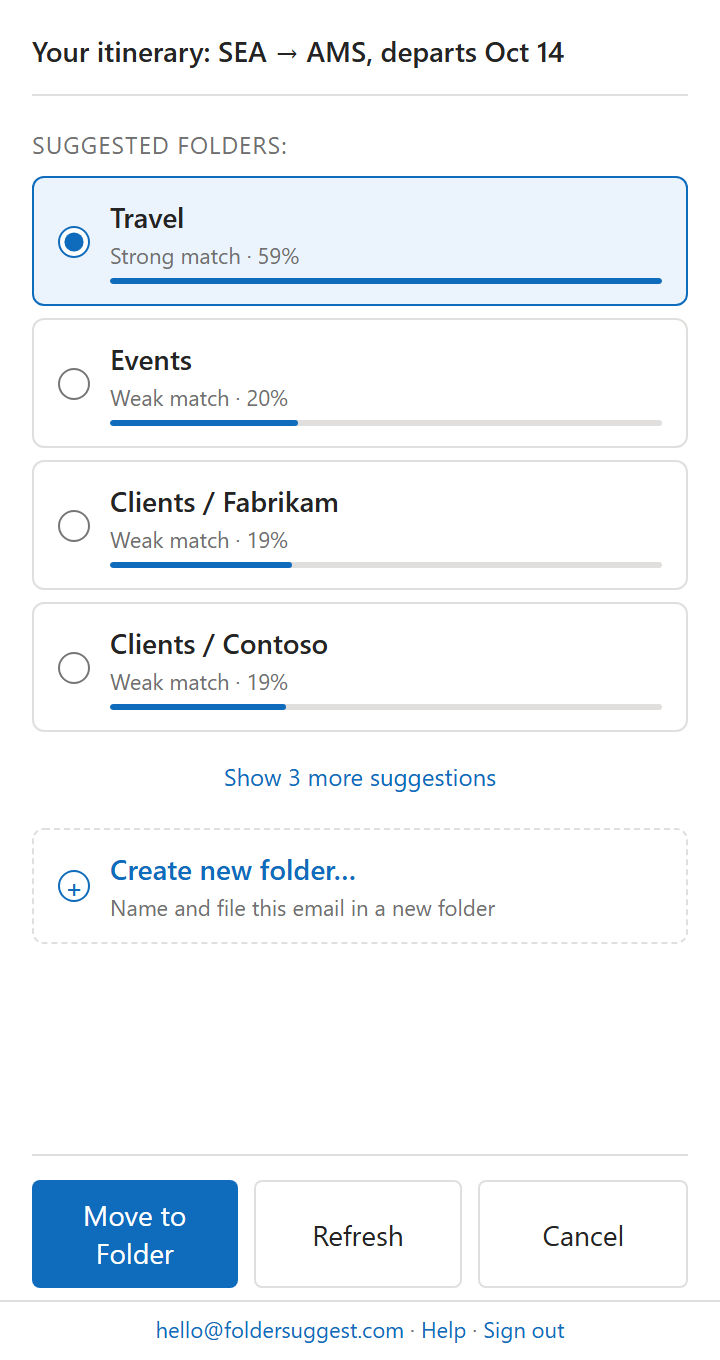
Folder Suggest is an Outlook add-in that uses an on-device language model to analyse the content of each email — sender, subject, and body — and compare it against the emails already stored in your folders. The result is a ranked list of folder suggestions. You review them and confirm with a click.
How it differs from rules
There are no conditions to write. There are no rules to maintain. Folder Suggest works for new senders you've never received email from before, and it works for emails that could plausibly belong in multiple folders — it ranks them so you can see the options.
Because it reads the content of the email rather than matching fixed patterns, it handles context that rules simply can't. An email from your accountant about a specific project will be ranked against both your "Finance" folder and your project folders — not forced into just one category by a rigid condition.
Key features
- On-device AI. The language model runs entirely on your machine. Email content is not sent to any server.
- No setup. No rules to write, no training required. Works immediately after installation.
- Works for new senders. Unlike rules, which require a pre-existing condition, Folder Suggest matches based on content — so it handles emails from people you've never heard from before.
- Outlook on the web and New Outlook. Works in all three major Outlook contexts, including New Outlook for Windows which doesn't support native Rules well.
- Free plan. 5 filed emails/day at no cost; Pro (€7.99/mo) for unlimited.
What to keep in mind
Folder Suggest suggests; it doesn't automatically file. You still review and confirm each move. If fully automatic, zero-touch filing is the goal, Outlook Rules remain the only option for that (within their limitations). Folder Suggest is for users who want better suggestions, not hands-off automation.
Comparison: Outlook Rules vs All 5 Alternatives
| Method | Setup effort | Handles new senders | Works on sent mail | Maintenance needed | Cost |
|---|---|---|---|---|---|
| Outlook Rules | High — write rules manually | ✗ No rule = no action | ~ With extra config | High — rules go stale | Free |
| Quick Steps | Medium — create steps manually | ✓ Manual trigger, any email | ✓ Can apply to any email | Medium — update as folders change | Free |
| Sweep Rules | Low — click & configure | ✗ Sender-based only | ✗ Inbox only | Low — set once | Free |
| Search Folders | Low — set criteria once | ✓ If criteria matches | ✓ Includes sent items | Low — virtual, not filing | Free |
| Third-party rule tools | Medium — better UI, still rules | ✗ Rule still required | ~ Depends on tool | Medium — rules still go stale | Varies (often paid) |
| Folder Suggest (AI) | None — works on install | ✓ Content-based match | ✗ Incoming email only | None | Free plan: 5 filed emails/day; Pro €7.99/mo |
Which Alternative Is Right for You?
The right choice depends on what's actually frustrating you about Outlook Rules.
If the problem is speed — you know where emails belong but filing is slow — Quick Steps will help. A few well-configured shortcuts can cut the time you spend filing in half, especially if you prefer working from the keyboard.
If the problem is newsletter and subscription clutter in Outlook.com or Outlook on the web, Sweep is the fastest fix. Click once per sender, and it's handled.
If the problem is not wanting to move emails at all but still wanting to find them by topic, Search Folders give you that — as long as you're on classic Outlook.
If the problem is the rules interface itself — confusing conditions, limited logic — tools like Clean Email offer a better experience, though they're still fundamentally rule-based.
If the problem is rules not covering enough of your inbox — emails from new people, emails about multiple topics, emails you can't write conditions for — AI-powered filing is the most complete answer. Folder Suggest handles those cases because it understands email content, not just conditions. There's nothing to write, nothing to maintain, and no sender database to keep current.
Want to file emails without writing a single rule? Folder Suggest works immediately after install — no setup, no rules, free to start.
Add to Outlook